Every Salesforce Admin knows the drill: a sales rep needs a quote, and suddenly you’re juggling spreadsheets, copying data from opportunity records, and formatting documents while hoping you don’t miss any crucial details. If you’ve ever found yourself manually creating quotes week after week, you’re not alone and there’s a better way.
The Quote Generation Time Sink
Quote generation is one of those tasks that seems simple on the surface but quickly becomes a productivity killer. Here’s what the typical manual process looks like:
The Traditional Quote Workflow:
- Sales rep requests a quote for an opportunity
- Admin opens the Salesforce opportunity record
- Manually extracts account details, contact information, and line items
- Switches to Word, Excel, or another document tool
- Copies and pastes data into a quote template
- Manually calculates totals and applies discounts
- Formats the document to match company branding
- Saves and emails the quote to the prospect
- Uploads a copy back to Salesforce for record-keeping
This process typically takes 30-60 minutes per quote. For organizations generating dozens of quotes weekly, that’s hours of admin time that could be spent on more strategic work.
The Hidden Costs:
- Time waste: 15-20 hours weekly on repetitive data entry
- Delayed responses: Slow quote turnaround hurts close rates
- Human error: Manual copying leads to pricing mistakes and incorrect details
- Inconsistent branding: Each quote looks slightly different
- Version control issues: Hard to track which quote version was sent to whom
How Automation Transforms Quote Generation
Document automation eliminates the manual steps that consume your time while ensuring accuracy and consistency. Instead of copying and pasting data, you create templates once and let the system handle the heavy lifting.
The Automated Approach:
- Templates pull data directly from Salesforce records
- Calculations happen automatically based on your business rules
- Branding and formatting remain consistent across all quotes
- Documents are generated in seconds, not hours
- Everything stays connected to your Salesforce data
The result? What once took an hour now takes minutes, and your quotes are more accurate and professional-looking than ever.
Step-by-Step: Implementing Quote Automation with TS Documents
Let’s walk through how to set up automated quote generation using TS Documents, a Salesforce-native solution that integrates seamlessly with your existing workflow.
Step 1: Install TS Documents from the AppExchange
Start by installing TS Documents directly from the Salesforce AppExchange. As a native Salesforce app, it inherits your org’s security settings and user permissions automatically.
Setup takes minutes:
- No external integrations required
- Uses your existing Salesforce data structure
- Respects your field-level security and sharing rules
Step 2: Create Your Quote Template
Instead of starting from scratch, use Google Docs to create your quote template. This familiar interface makes template creation straightforward for any admin.
Template Design Best Practices:
- Include your company logo and branding
- Set up merge fields for dynamic data ({{Account.Name}}, {{Opportunity.Amount}})
- Create sections for line items, terms, and conditions
- Add calculated fields for totals and taxes
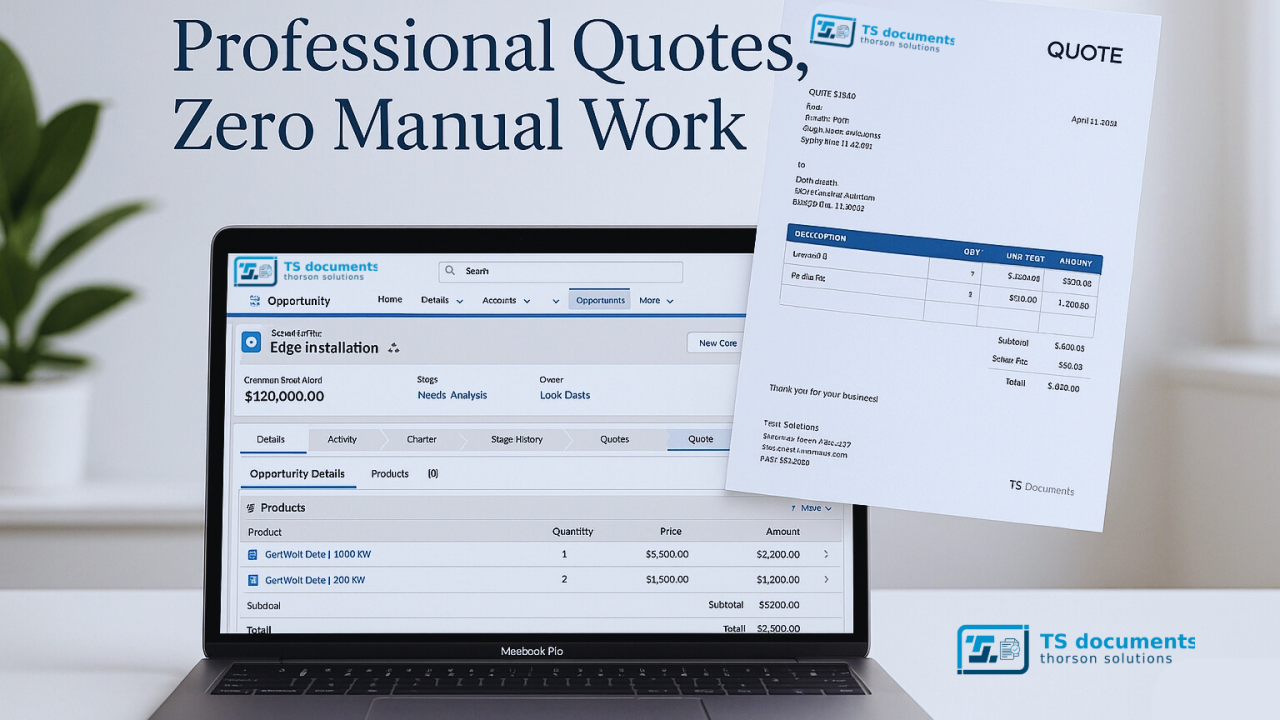
Example Template Structure:
QUOTE #{{Opportunity.Quote_Number__c}}

Bill To:
{{Account.Name}}
{{Account.BillingStreet}}
{{Account.BillingCity}}, {{Account.BillingState}} {{Account.BillingPostalCode}}

Opportunity: {{Opportunity.Name}}
Quote Date: {{TODAY()}}
Valid Until: {{Opportunity.CloseDate}}

[Line Items Table]
Product | Quantity | Unit Price | Total
{{#OpportunityLineItems}}
{{Product2.Name}} | {{Quantity}} | {{UnitPrice}} | {{TotalPrice}}
{{/OpportunityLineItems}}

Subtotal: {{Opportunity.Amount}}
Tax: {{Opportunity.Tax__c}}
Total: {{Opportunity.Total_Amount__c}}
Step 3: Map Your Salesforce Fields
Connect your template to live Salesforce data by mapping merge fields to your org’s custom and standard fields.
Field Mapping Options:
- Standard fields: Account.Name, Opportunity.Amount, Contact.Email
- Custom fields: Your specific business data points
- Related records: Pull in product details, line items, and associated contacts
- Calculated fields: Dynamic totals, dates, and conditional content
The visual field mapper makes it easy to see exactly which Salesforce data will populate each part of your quote.
Step 4: Set Up Line Item Handling
Quotes often include multiple products or services. TS Documents handles repeating line items automatically.
Configure Line Item Display:
- Pull product names from your price book
- Include quantities and unit prices
- Calculate line totals automatically
- Add product descriptions and codes
- Handle different product types (products, services, discounts)
Step 5: Configure Output Options
Determine how and where your generated quotes should be saved and shared.
Output Configuration:
- File formats: PDF for final quotes, Word for editable versions
- Storage locations: Salesforce Files, Google Drive, or Amazon S3
- Automatic actions: Email to prospects, attach to opportunity records
- Naming conventions: Include opportunity number, account name, and date
Step 6: Create Generation Rules
Set up when and how quotes should be generated automatically.
Automation Triggers:
- Manual generation: Button on opportunity page layouts
- Flow integration: Trigger from Salesforce Flow processes
- Apex integration: Call from custom code or triggers
- Process Builder: Generate quotes when opportunities reach certain stages
Step 7: Test Your Setup
Before rolling out to your team, thoroughly test your quote generation process.
Testing Checklist:
- Generate quotes for different opportunity types
- Verify all data populates correctly
- Check calculations and totals
- Ensure branding and formatting look professional
- Test with various line item combinations
- Confirm documents save to the correct locations
Step 8: Train Your Team
Even though the process is now automated, your team needs to understand how to use the new system.
Training Topics:
- How to generate quotes from opportunity records
- When to use different template versions
- How to handle special cases or custom requests
- Where to find generated documents
- How to troubleshoot common issues
The Results: What to Expect
Organizations implementing quote automation typically see immediate improvements:
Time Savings:
- 90% reduction in quote generation time
- 15-20 hours weekly freed up for strategic work
- Faster response times to prospect requests
Accuracy Improvements:
- Elimination of copy-paste errors
- Consistent pricing and calculations
- Professional, branded appearance on every quote
Process Benefits:
- All quotes automatically saved to Salesforce
- Clear audit trail of quote versions
- Standardized formatting across the organization
Getting Started with TS Documents
Ready to eliminate manual quote generation from your workflow? TS Documents makes it straightforward to implement professional document automation that integrates seamlessly with your existing Salesforce org.
Next Steps:
- Learn more: Visit our TS Documents page to see all features and capabilities
- Book a demo: Schedule a 30-minute walkthrough tailored to your specific quote requirements
- Get expert help: Work with our Salesforce-certified team to implement your solution
Your sales team will appreciate faster quote turnaround times, your executives will love the time savings, and you’ll finally be free to focus on higher-value projects that truly move your business forward.
Ready to automate your quote generation? Book a 30-minute demo or learn more about TS Documents today.